Grade Calculator
Calculate weighted grades, GPA, and what-if scenarios instantly.
What Is a Grade Calculator?
Let's be real: nobody wants to dig through a syllabus with a calculator in one hand and a coffee in the other just to figure out where their grade stands. A grade calculator does the heavy lifting for you. You punch in your scores, tell it how much each assignment counts, and it tells you your grade. That's it.
Students use these things for all sorts of reasons. Maybe you want to check where you stand halfway through the semester. Maybe you need to know exactly what you have to get on the final to keep your scholarship. Or maybe you just want to see if that B+ on your last essay helped or hurt your average.
The Calcluster Grade Calculator puts four handy tools on one page: a Weighted Grade Calculator, a GPA Calculator, a What-If Predictor, and a Letter Grade Converter. They're all free, totally private, and work just as well on your phone as they do on a laptop.
A grade calculator is a free online tool that figures out your academic grade by taking each assignment score, multiplying it by how much that assignment is worth, adding everything up, and turning the final number into a letter grade. Students use a grade calculator to check their standing during the semester, find out what score they need on a final exam to hit a target grade, compute their GPA across several courses, and convert percentage scores to letter grades on the spot.
You've been there. You just got an exam back, and now you're staring at the ceiling thinking, "Okay… so what's my grade actually at?" That's where a grade calculator comes in. Instead of pulling out your syllabus, hunting down percentages, and doing a bunch of multiplication, you just type a few numbers and click a button.
But a good grade calculator does more than just average stuff out. The really useful part is the planning. You should be able to say, "Here's where I am right now. Here's where I want to be. Tell me what I need for the rest of my work to get there." That's what students really care about — especially when finals are around the corner and every point feels like it matters.
This tool does exactly that. It works for a 6th grader trying to keep up with homework just as well as it works for a college senior calculating what she needs on her last final to keep her financial aid. The numbers change, but the process is the same: put in your info, get a clear answer.
How to Use the Grade Calculator (Step-by-Step)
You'll see four tabs across the top. Each one does something different. You don't need all four — just click the one that matches what you're trying to figure out.
How to Use the Weighted Grade Calculator (Tab 1)
Use this tab when your class has weighted categories — homework worth 20%, tests 50%, quizzes 30%… that kind of setup.
- Step 1: Click the green "+ Add Category" button to make a row for each part of your class. Typical ones: Homework, Quizzes, Midterm, Final Exam, Projects, Lab Reports — whatever is on your syllabus.
- Step 2: Fill in the three boxes for each row. The Category Name is just for you (optional). Score (%) is the grade you got in that category. Weight (%) is how much it counts toward your final grade — check your syllabus for this.
- Step 3: Watch the weight badge near the top. It adds up your weights as you go and turns green when they hit exactly 100%, showing "Perfect!" That's your signal that everything is set up right. If the weights don't add up to 100, the calculator will warn you.
- Step 4: Click "Calculate Grade." Your overall grade shows up as a percentage with the letter grade right below it.
- Step 5: Made a mistake? Hit Reset and start over.
One quick note: if you're in the middle of the semester and some categories don't have grades yet, just leave those rows out. The calculator works fine with whatever is already graded.
How to Use the GPA Calculator (Tab 2)
This tab is for when you want to see your Grade Point Average across all your classes, not just one.
- Step 1: Pick your grading scale from the dropdown. Your options are: 4.0 Scale (US Standard), 4.3 Scale (US with A+), 5.0 Scale (International), or 10.0 Scale (India/Pakistan). Pick the wrong one and your GPA won't mean much, so double-check what your school uses.
- Step 2: Click "+ Add Course" for each class. For every course you need: the Course Name, the Letter Grade you got (from a dropdown), and the Credit Hours.
- Step 3: Click "Calculate GPA." You'll see your cumulative GPA on the scale you picked and the total credits.
How to Use the What-If Grade Calculator (Tab 3)
This is the one students pull up most often right before finals. It works backward from the grade you want to tell you the score you need.
- Step 1: Type in your Current Grade (%) — your overall percentage based on everything graded so far.
- Step 2: Enter the Weight Already Completed (%) — the total percentage of your course grade that has already been graded. If your homework (20%), quizzes (20%), and midterm (20%) are all done, you'd type 60 here.
- Step 3: Put in your Target Final Grade (%) — the grade you're hoping to finish with.
- Step 4: Click Calculate. You'll see two things: the exact score you need on your remaining work, and the remaining weight.
If the number comes back above 100%, the tool tells you. That means your target isn't reachable anymore — and honestly, finding that out before the exam is way better than finding out after. You can reset your goal and aim for something you can actually hit.
How to Use the Letter Grade Converter (Tab 4)
This is a quick two-way lookup tool — percentage to letter, or letter to percentage.
- Step 1: Choose your scale at the top. Standard means A/B/C/D/F with the usual 90/80/70/60 cutoffs. Plus/Minus gives you the full breakdown with A+, A, A−, etc.
- Step 2: Choose your direction:
- % to Letter: Type a percentage (like 83) and click Convert. You get the letter grade plus the full range.
- Letter to %: Pick a letter grade from the dropdown and click Convert. You get the percentage range.
This comes in handy more often than you'd think — especially when a teacher posts a letter grade but your gradebook tracks everything as percentages.
Will My Grade Go Up or Down? How to Check
A lot of students come to a grade calculator after getting one score back and wanting to know: did that help me or hurt me? The answer isn't just about whether the score was good or bad — it depends on how much that assignment is worth.
Will My Grade Go Up Calculator
If the score you just got is higher than your current average, yes — your grade goes up. But how much depends almost entirely on the weight. A 98% on a tiny homework assignment barely moves the needle. A 98% on a final worth 40% of your grade moves it a ton.
To see the exact impact, go to the Weighted Grade tab, enter all your existing categories plus the new score as a new row, and run the calculation. Compare that result to what your grade was before — the difference is your increase.
Will My Grade Drop Calculator
Same logic applies when a score comes in lower than your average. A 55% on a quiz worth 5% stings a little. A 55% on a final worth 40% can be genuinely damaging. The weight determines the actual damage.
To check the drop, add the new score into your Weighted Grade tab with its correct weight and see how your overall percentage changes.
Will I Pass Grade Calculator
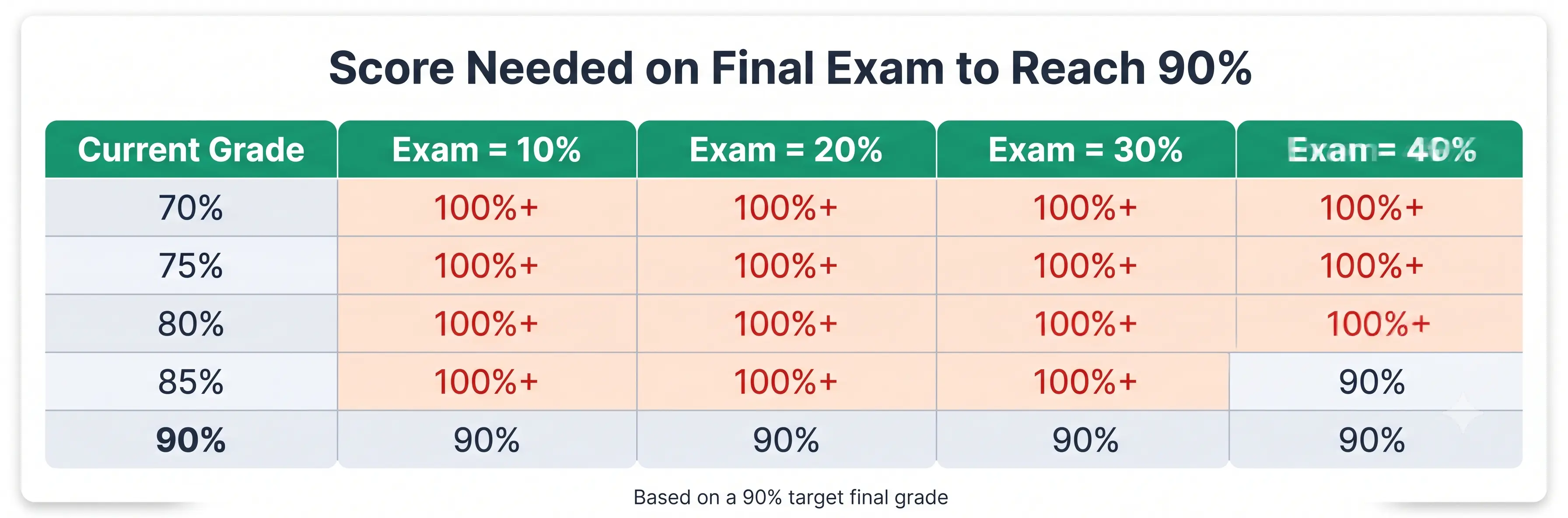
If passing is genuinely on the line, go to the What-If tab. Enter your current grade, the percentage of the course graded so far, and set your target to 60% (the most common US passing threshold). The result tells you exactly what you need on remaining work to pass. If that number is realistic, you have a path. If it comes back above 100%, it's time to talk to your teacher.
How Much Will My Grade Go Up Calculator
The most accurate way: use the Weighted Grade tab before and after adding a new score. Run it without the new score, write down the result, then add the new row and run it again. The difference is exactly how much your grade moved.
How Grade Calculations Actually Work: The Math Behind the Tool
If you've ever wondered what's actually happening when the calculator spits out a number, here's the math. It's simpler than it looks.
The Weighted Average Formula
In plain English: take each category, multiply the score by the weight (as a decimal, so 30% becomes 0.30), add up all those products, and divide by the sum of the weights. If your weights add up to 100 — which they should — that last step is just dividing by 100.
A Worked Example
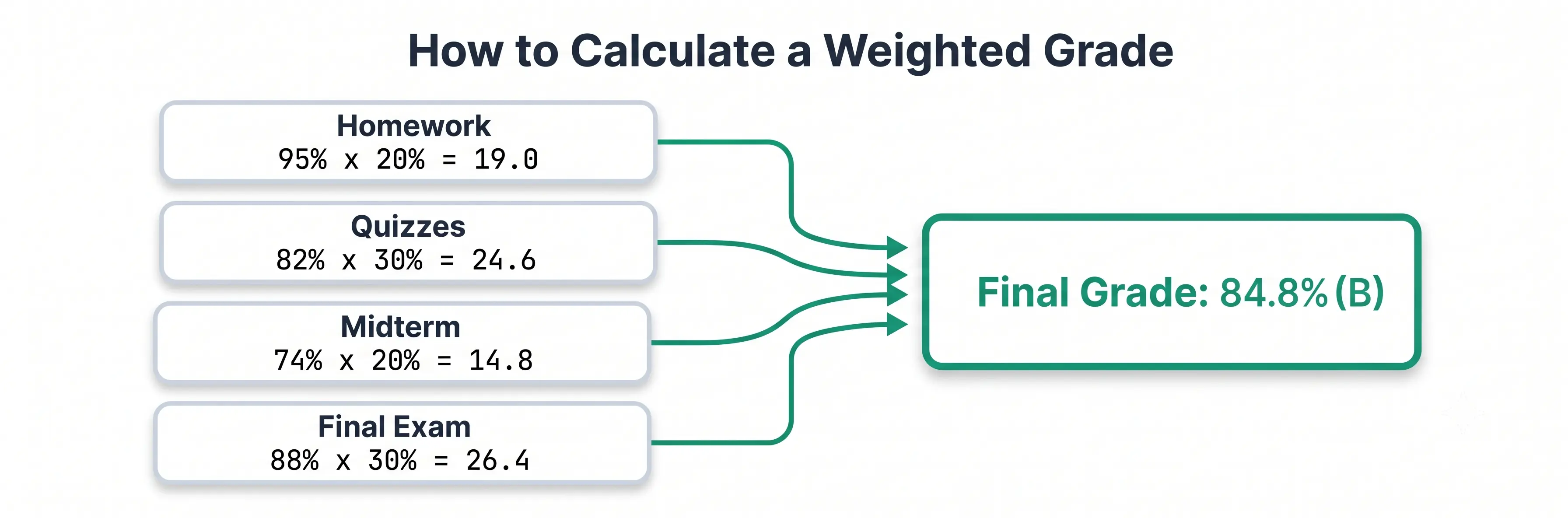
Say your course looks like this:
- Homework: 95%, worth 20% → 95 × 0.20 = 19.0
- Quizzes: 82%, worth 30% → 82 × 0.30 = 24.6
- Midterm: 74%, worth 20% → 74 × 0.20 = 14.8
- Final Exam: 88%, worth 30% → 88 × 0.30 = 26.4
Add those up: 19.0 + 24.6 + 14.8 + 26.4 = 84.8% — that's a B.
How to Compute It by Hand
- Write down each category with its score and weight.
- Turn the weight into a decimal (20% = 0.20).
- Multiply the score by the decimal weight.
- Add all those products together.
- That sum is your grade percentage.
- Look it up in the grade scale to get your letter grade.
Most errors happen at step 2 — people forget to convert the percentage to a decimal. The calculator does this automatically.
The What-If Formula
Weight Remaining = 100 − Weight Completed
Example: You have 85%, 70% of the course is done, and you want a 90%.
(90 − 85 × 0.70) ÷ 0.30 = (90 − 59.5) ÷ 0.30 = 30.5 ÷ 0.30 = 101.7%
That number above 100% tells you a 90% is impossible — even a perfect score wouldn't get you there.
The GPA Formula
On a 4.0 scale: A=4.0, B=3.0, C=2.0, D=1.0, F=0.0.
Two 3-credit courses: one A and one C. (4.0×3 + 2.0×3) ÷ 6 = 18 ÷ 6 = 3.0 GPA.
Letter Grade Scale and GPA Reference
This is the standard US scale. Your school might define cutoffs slightly differently.
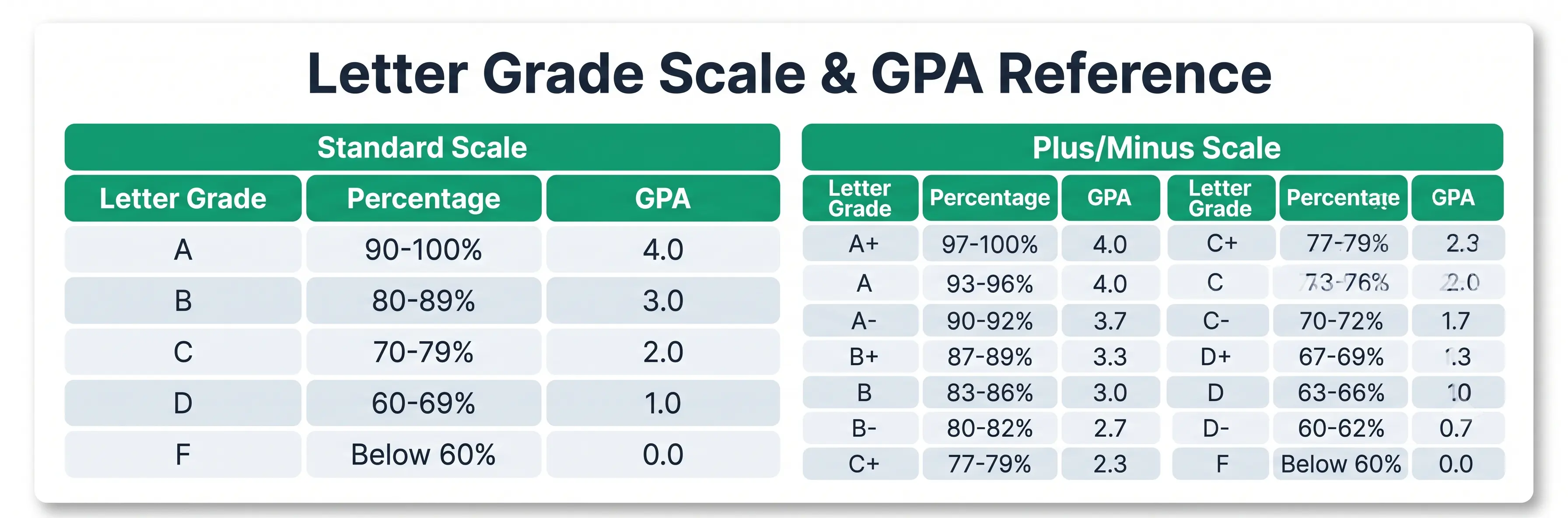
Standard Scale (No Plus/Minus)
- A: 90–100% (4.0) — Excellent
- B: 80–89% (3.0) — Above average
- C: 70–79% (2.0) — Satisfactory
- D: 60–69% (1.0) — Below average, but passing
- F: Below 60% (0.0) — Failing
Plus/Minus Scale
- A+: 97–100% (4.0 or 4.3 at some schools)
- A: 93–96% (4.0)
- A−: 90–92% (3.7)
- B+: 87–89% (3.3)
- B: 83–86% (3.0)
- B−: 80–82% (2.7)
- C+: 77–79% (2.3)
- C: 73–76% (2.0)
- C−: 70–72% (1.7)
- D+: 67–69% (1.3)
- D: 63–66% (1.0)
- D−: 60–62% (0.7)
- F: Below 60% (0.0)
One note on A+: some schools treat it as 4.0 (same as a regular A), others use a 4.3 scale. The GPA tab lets you choose.
Grade Calculator for Different Grade Levels
Middle School (6th, 7th, 8th Grade)
Most middle school classes don't use complicated weighted categories. Many teachers just track total points. If that's your situation, you can still use the Weighted Grade tab — just give every row the same weight. Ten assignments? Give each 10%. The math works fine.
The What-If tab is underused by middle schoolers, but it's really helpful heading into end-of-year exams. Sitting at 72% and wondering if you can pull a B? Plug your numbers in and find out.
High School
High school is where weighted grades become the norm. Most courses break grades into categories — classwork, tests, quizzes, midterm, final — each with different percentages. That makes the Weighted Grade tab the most important one.
High schoolers should also use the GPA tab regularly. Colleges look at your cumulative GPA, not just individual grades. Tracking it yourself gives you early warning if something slips.
College
College courses often have more complex grading. Professors sometimes weight individual assignments differently. The syllabus has the breakdown — the Weighted Grade tab is where you enter it.
The GPA tab is critical in college because your GPA affects academic standing, scholarships, honors programs, and grad school applications. Keeping a live estimate gives you time to adjust if a semester isn't going well.
Teachers
Teachers use grade calculators differently. Instead of checking their own grades, they use the Weighted Grade tab to verify their grading structure before sharing it with a class. You can enter planned category weights — Homework 20%, Quizzes 20%, Tests 40%, Final 20% — and confirm they add up to 100%. You can also model sample scores to see how grades shake out.
Where to Find a Grade Calculator
Where Is the Grade Calculator on Canvas?
Canvas has a Grades section that shows your running grade. If your teacher enabled the What-If feature, you can test hypothetical scores. But not every teacher enables it. And even when they do, Canvas only lets you test ungraded assignments — you can't go back and say "what if that midterm went differently." The What-If tab here is more flexible.
Where Can I Find a Reliable Free Online Grade Calculator?
You're on one. This tool at Calcluster is completely free, needs no account, stores nothing, and runs entirely in your browser. Close the tab, and your data is gone. That's a feature for privacy.
Can I Download a Free Spreadsheet for Grade Tracking?
Yes. Search for "grade calculator template Google Sheets" or "weighted grade tracker Excel." They work well if you want to keep records over time. The downside: they take setup time and some formula knowledge. For a quick calculation, a browser tool is faster. For a semester-long record, a spreadsheet might be worth it.
How to Make a Grade Calculator in Notion
Notion doesn't have built-in weighted averages, but you can build one with a database and Formula properties. Set up columns for Score, Weight, and a Formula that multiplies them. Then sum those and divide by total weight. It works, but it takes real Notion know-how. For most students, an already-built browser tool saves hours.
Why Your Calculated Grade Might Not Match the Gradebook
This is a super common question. You run your numbers, get 84.7%, and the school's system says 83.2%. What gives?
- Rounding policies are the usual culprit. Some teachers round each assignment before averaging. Others carry decimals through and only round at the end. Both are fine — they just give slightly different numbers. If you ever need to check how a score shift affects a percentage, our Percent Increase Calculator can help.
- Dropped scores also cause mismatches. If your class drops the lowest quiz grade, you need to remove it from your calculation too.
- Extra credit is tricky. Some teachers let it push a category above 100%. Others cap it. Ask your teacher how it works.
- Missing assignments matter. Until a teacher enters a zero, some gradebooks pretend those assignments don't exist — artificially inflating your grade. When those zeroes hit, your grade drops. That's why tracking it yourself helps.
- Curves and regrades also throw things off. Make sure you're using updated scores.
- Weight discrepancy — your reading of the syllabus and your teacher's actual setup don't match. That's the first place to look.
How to Actually Improve Your Grade
Checking your grade is useful. Using that info to change it is the whole point.
- Focus on what carries the most weight. If you have a quiz worth 5% and a test worth 35%, don't spend equal time on both. The test matters seven times more. You can also use our Percent Increase Calculator to see how much a score jump translates to a real percentage gain.
- Never let an assignment hit zero. 55% hurts. A zero hurts the same amount but leaves you with nothing. Partial credit almost always beats a zero. Submit something. Use our Percent Decrease Calculator to see exactly how much a zero drags your average down.
- Run the What-If before every major exam. Get a specific number to aim for. Students with a concrete target study more efficiently.
- Adjust your target if the math doesn't work. If you need 104% to get an A, that's not going to happen. Pick a realistic goal and go after that instead.
- Talk to your teacher before the exam, not after. If the What-If tells you something alarming — like needing a 97% to pass — ask about extra credit, resubmissions, or whether you understand the weights correctly. Teachers have more flexibility before grades are finalized.
- Track your grade every week. The students least surprised by final grades are the ones who check weekly. Update the Weighted Grade tab every time a score comes back.
Frequently Asked Questions
How to calculate weighted grade by hand?
Multiply each score by its weight as a decimal, add them up. Example: (90 × 0.20) + (80 × 0.30) + (75 × 0.50) = 79.5%.
How to use the GPA tab?
Open Tab 2, pick your scale, add courses with grades and credits, click Calculate.
Will my grade go up after one good score?
It depends on the weight. Use the Weighted Grade tab to see the exact impact, or check our Percent Increase Calculator to measure the percentage gain directly.
Will I pass?
Go to the What-If tab, set your target to 60%, and see what you need on remaining work.
What does a What-If result above 100% mean?
Your target is impossible. Lower it to something achievable.
Is this free online grade calculator no login required?
Yes. No account, no payment, no data collection.
What's the difference between a grade calculator and a GPA calculator?
A grade calculator works inside one course. A GPA calculator averages across multiple courses. This tool does both.
A Final Word
There's a big difference between knowing your grade and understanding it. A number on a screen doesn't tell you much by itself. But knowing your grade, knowing exactly what moved it up or down, and knowing what you need on your next exam to hit your target — that's information you can actually do something with.
This Grade Calculator gives you the full picture, not just a snapshot. Use all four tabs as the semester goes on. Update your scores regularly. Run the What-If before every major exam. And when the results aren't what you hoped for, use them as a map — not a verdict.
The grade you want is usually still within reach if you find out early enough what it actually takes to get there.